Availability: User attributes are available on the Trial, Pro and Enterprise plans.
User attributes let you tag your users with structured information — like their region, customer tier, or whether they're a Beta tester — and filter your feedback board by those tags. It's how you segment feedback by the people behind it, so you can answer questions like:
- "What are our paying customers asking for?"
- "Which posts come from users in Europe?"
- "Show me feedback only from users tagged as Beta testers."
User attributes live on the user, not the post — so a single attribute value applies to every post and comment that user has ever made.
Who can manage user attributes
"User" here means anyone with a signed-in account on your board:
- Members — signed-in board users, often your customers, who can post and vote.
- Moderators, Admins, Owners — your team.
- Visitors are browsing without a signed-in account on your board, so they can't be tagged.
The table below shows who can manage attributes (create / edit / delete the definitions). See User roles for the full breakdown of what each role can do.
| Role | Can see user attributes | Can create / edit attributes |
|---|---|---|
| Visitor | No | No |
| Member | No | No |
| Moderator | Yes | No |
| Admin | Yes | Yes |
| Owner | Yes | Yes |
User attributes are an internal tool — the tagged user themselves never sees them, and members of your board don't either. Only moderators, admins, and owners can read them, and only admins and owners can change them.
Creating your first user attribute
User attributes are managed from a user's profile rather than a dedicated settings page:
-
Open your board.
-
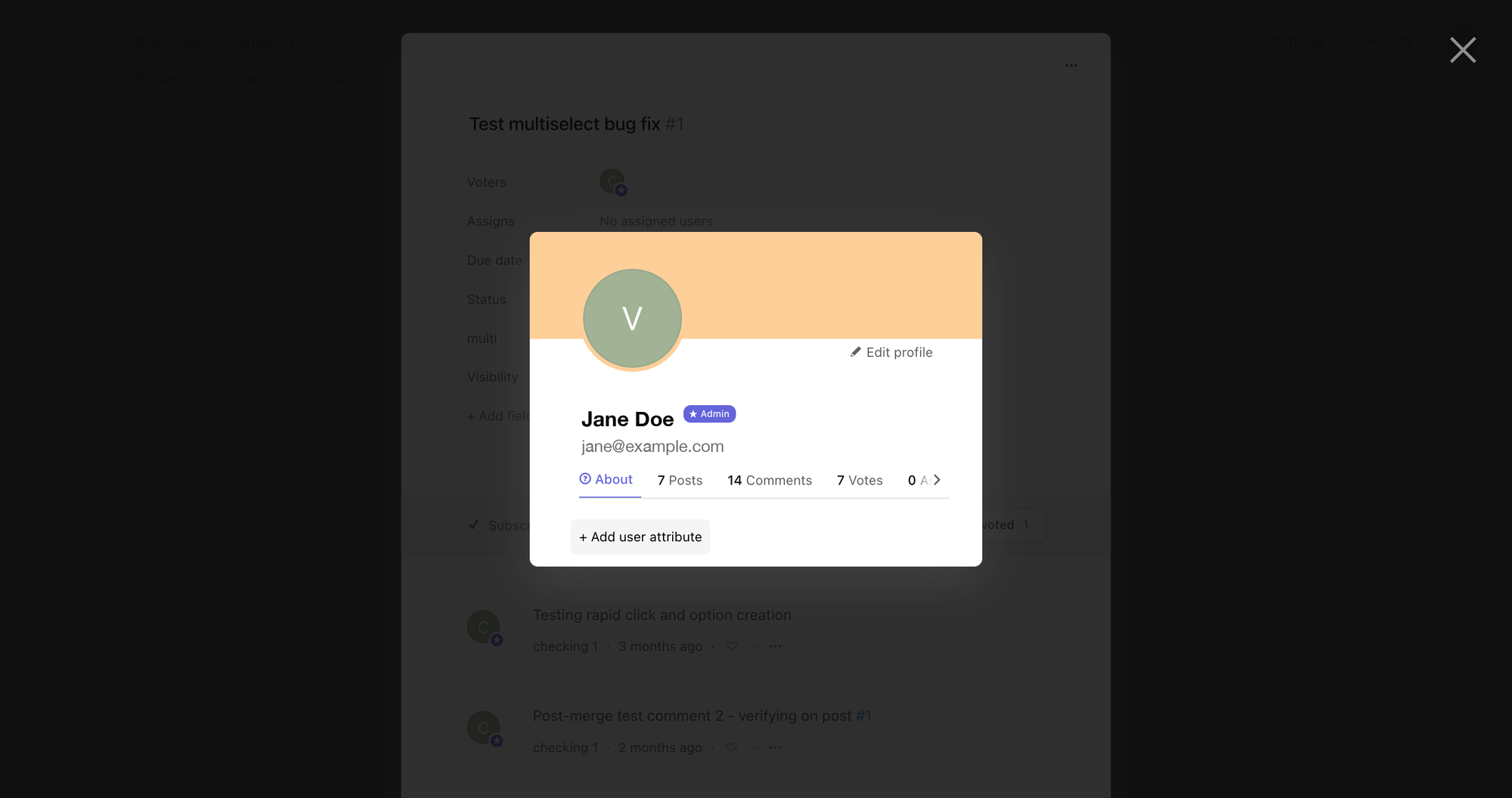
Click a user's avatar — on any post or comment, or from your board's team list — to open their profile modal.
-
The profile opens on the About tab by default. If your board doesn't have any attributes yet, you'll see just the + Add user attribute button at the bottom of the About panel.
-
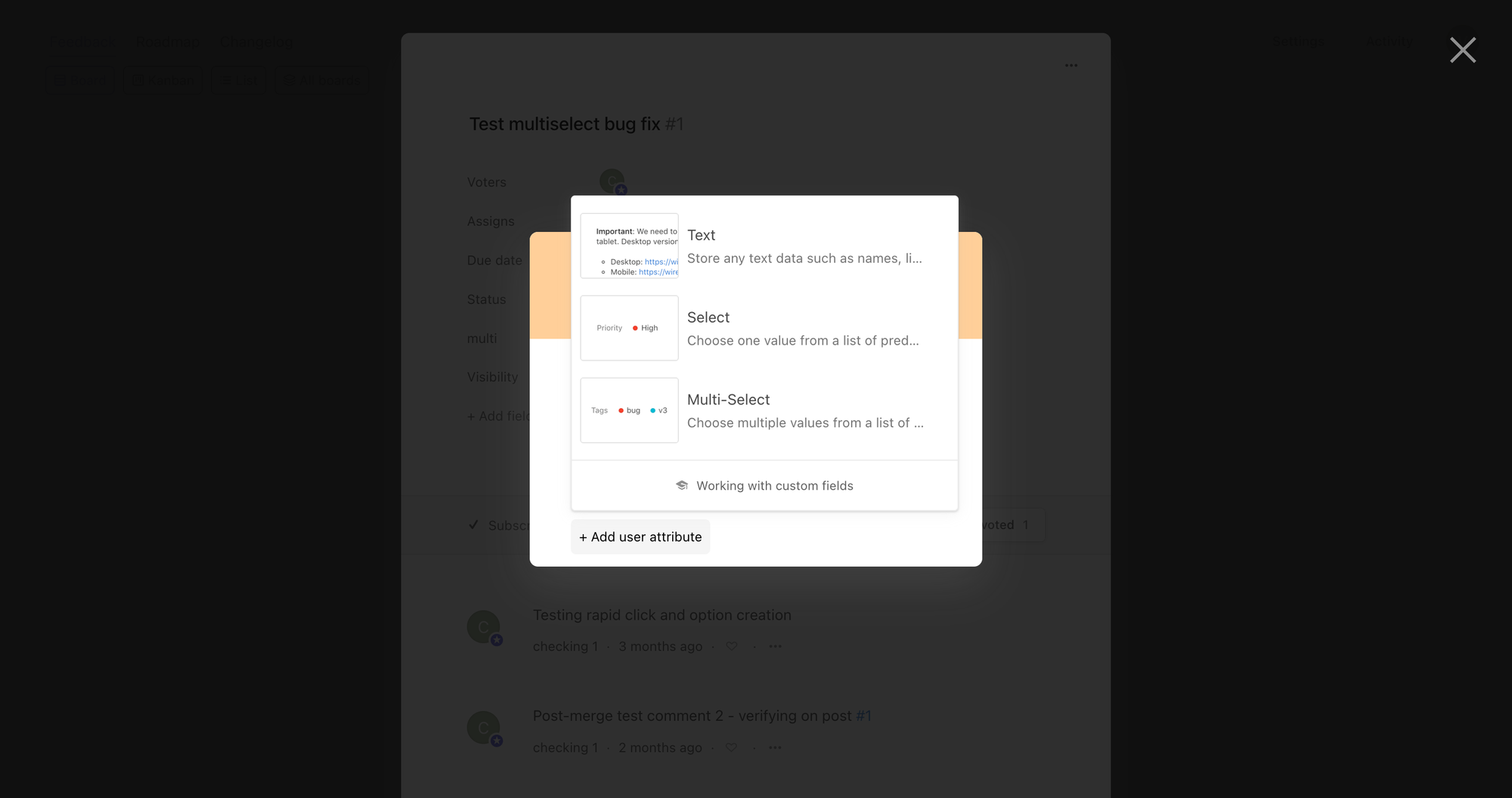
Click + Add user attribute.
-
Pick the type: Text, Select (one value), or Multi-Select (multiple values).
-
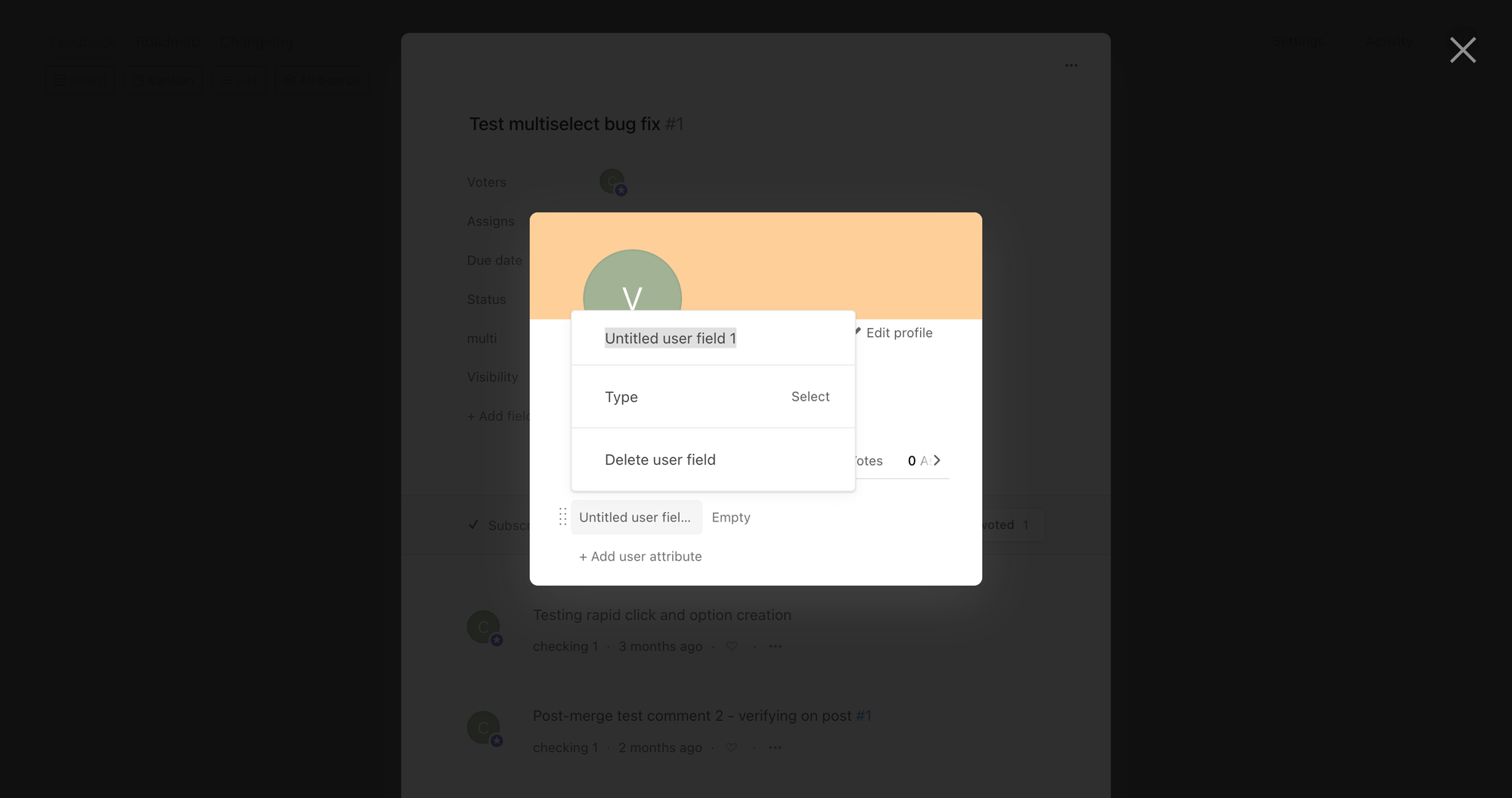
A new attribute is added with a default name like Untitled user field 1. Click the name to rename it (e.g. Region).
-
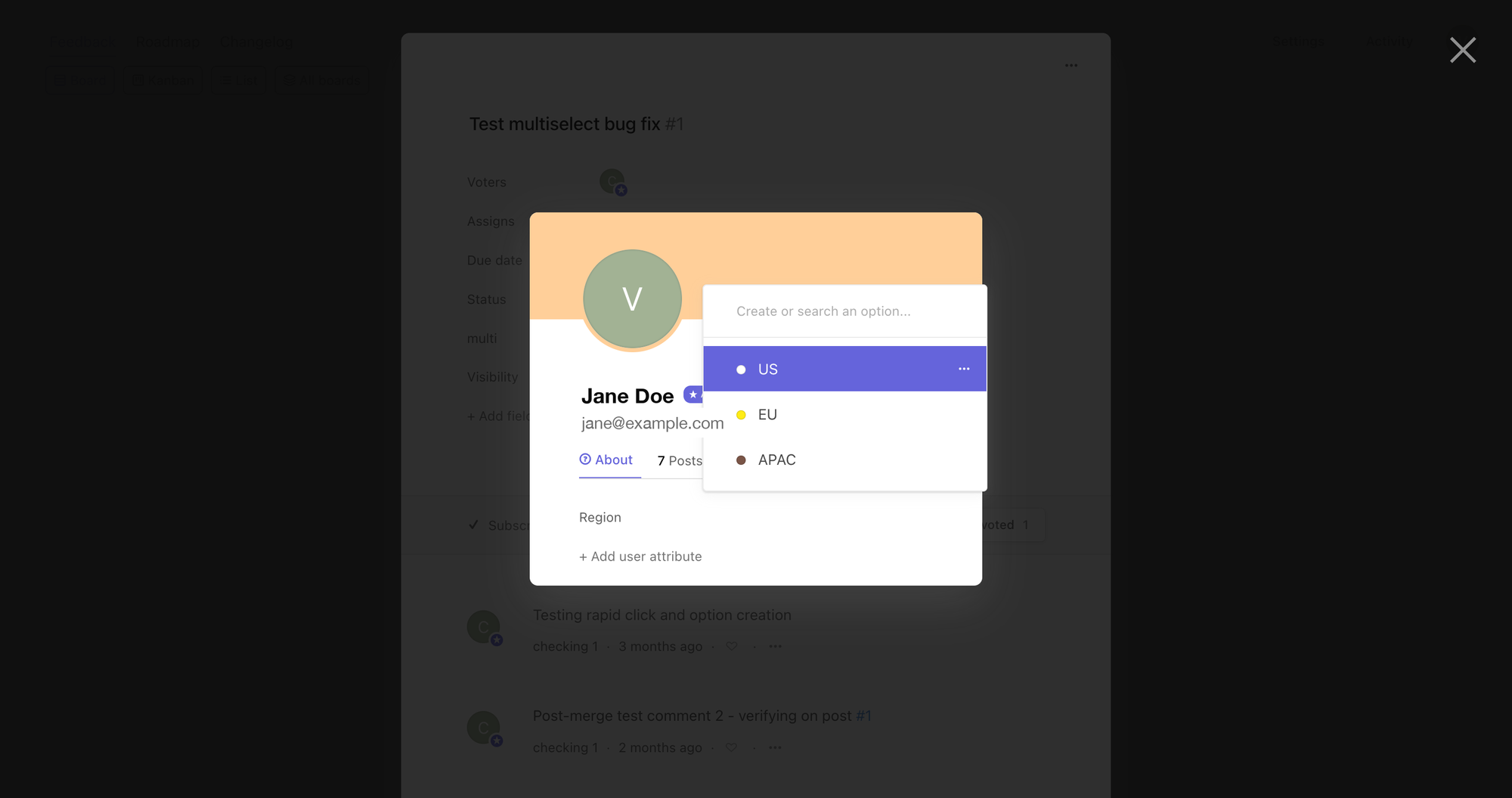
For Select and Multi-Select types, click the value field (it says Empty initially) and add the values you want users to be tagged with (e.g. US, EU, APAC). Press Enter or click each "+ Create X" suggestion to add an option.
-
Pick a value to tag the current user — or close the dropdown to come back later.
Once you've created the attribute, you can assign a value to that user immediately, and the attribute will appear on every other user's About tab too, ready to be set.
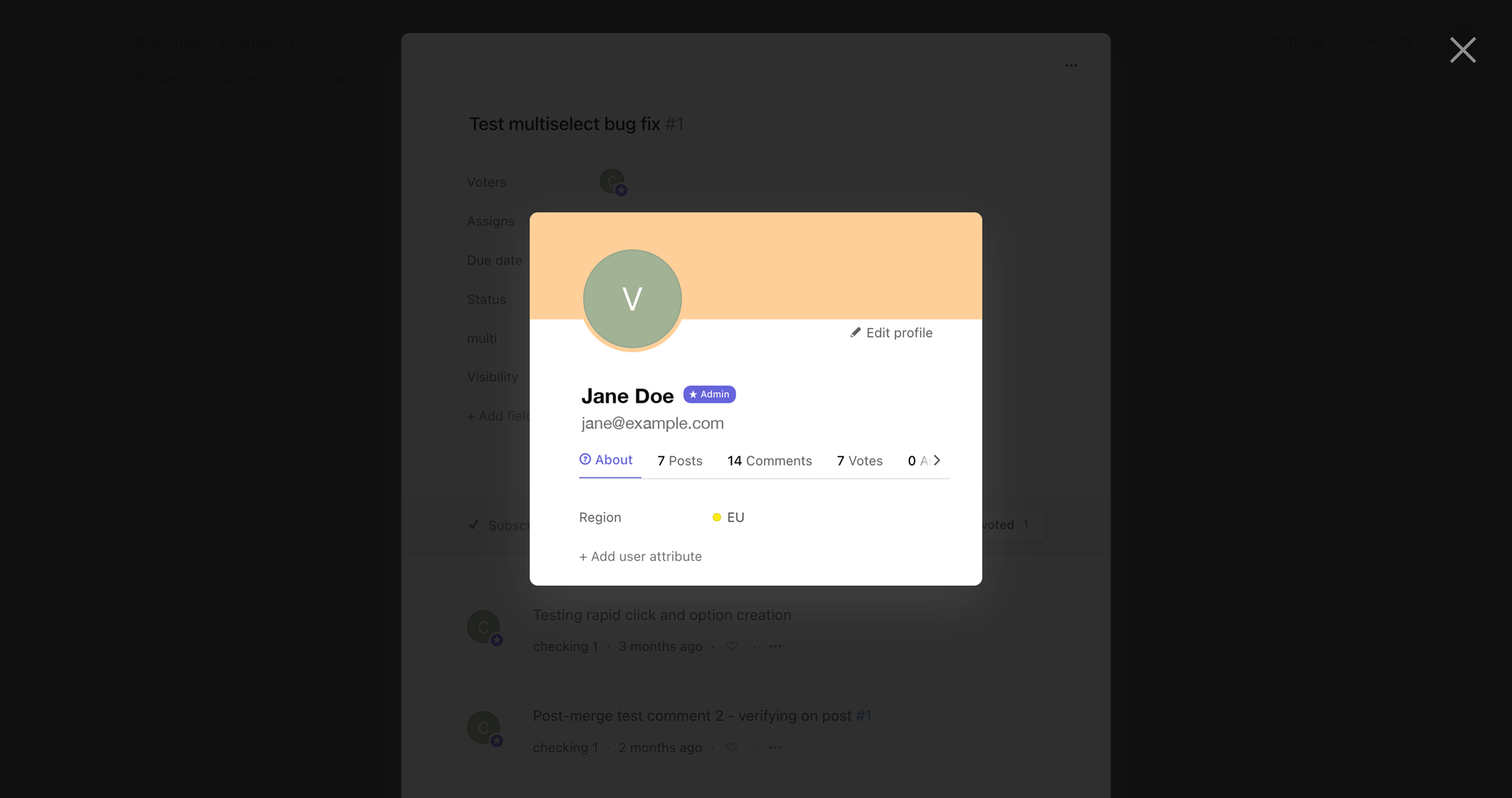
Tip: If your board doesn't have any other members yet, you can create the attribute on your own profile — there's no requirement to start from a customer's profile.
Filtering posts by user attributes
You can filter by user attributes in Advanced Search, and in board views that support the Filter menu — such as Kanban and List. Here's how to do it in Advanced Search:
- Open your board.
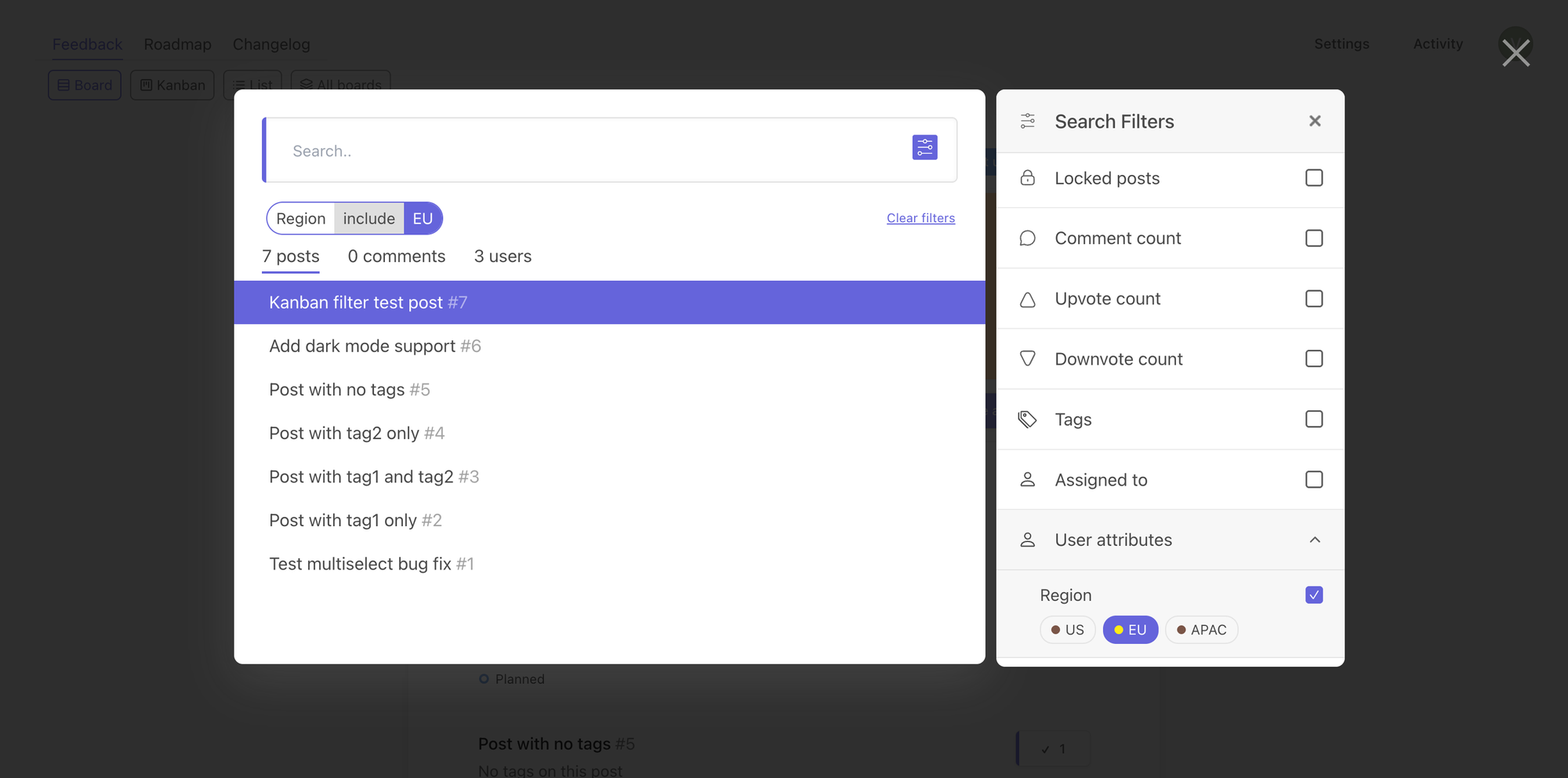
- Click on Search at the top of your board, then click the small filter icon at the right edge of the search input — the Advanced Search panel slides in from the right.
- Scroll to the User attributes section at the bottom of the panel and click it to expand.
- Pick the attribute (e.g. Region) — its values appear as colored pills underneath.
- Click the value you want (e.g. EU). The pill highlights and the post list updates immediately. For Multi-Select attributes you can pick several values; the post list shows users tagged with all of those values. For Select (single-value) attributes pick just one value per filter — picking two values for the same Select attribute returns no posts, because a user can only hold one value.
The post list updates to show only posts authored by users matching that attribute value. You can also stack different attributes — for example, Region = EU and Customer tier = Paid — to narrow the list further.
Note: If the User attributes section is empty when you expand it, you haven't created any attributes yet. Follow the steps in Creating your first attribute above.
Attribute types
| Type | Use it for | Filterable in Advanced Search |
|---|---|---|
| Select | One value from a fixed list (e.g. Region) | Yes |
| Multi-Select | Multiple values from a fixed list (e.g. Use cases) | Yes |
| Text | Free-form text (e.g. Internal notes, Account manager name) | Not yet |
Only the Select and Multi-Select types appear in the Advanced Search filter today. Text attributes are visible on the user's profile but can't be used to filter posts.
Frequently asked questions
Do users see their own attributes?
No. User attributes are an internal tool for your team; the tagged user has no visibility into the attributes you've set on them.
Can I import attributes in bulk?
There's no bulk CSV import. Attributes are added manually per user from the About tab.
Can I delete an attribute later?
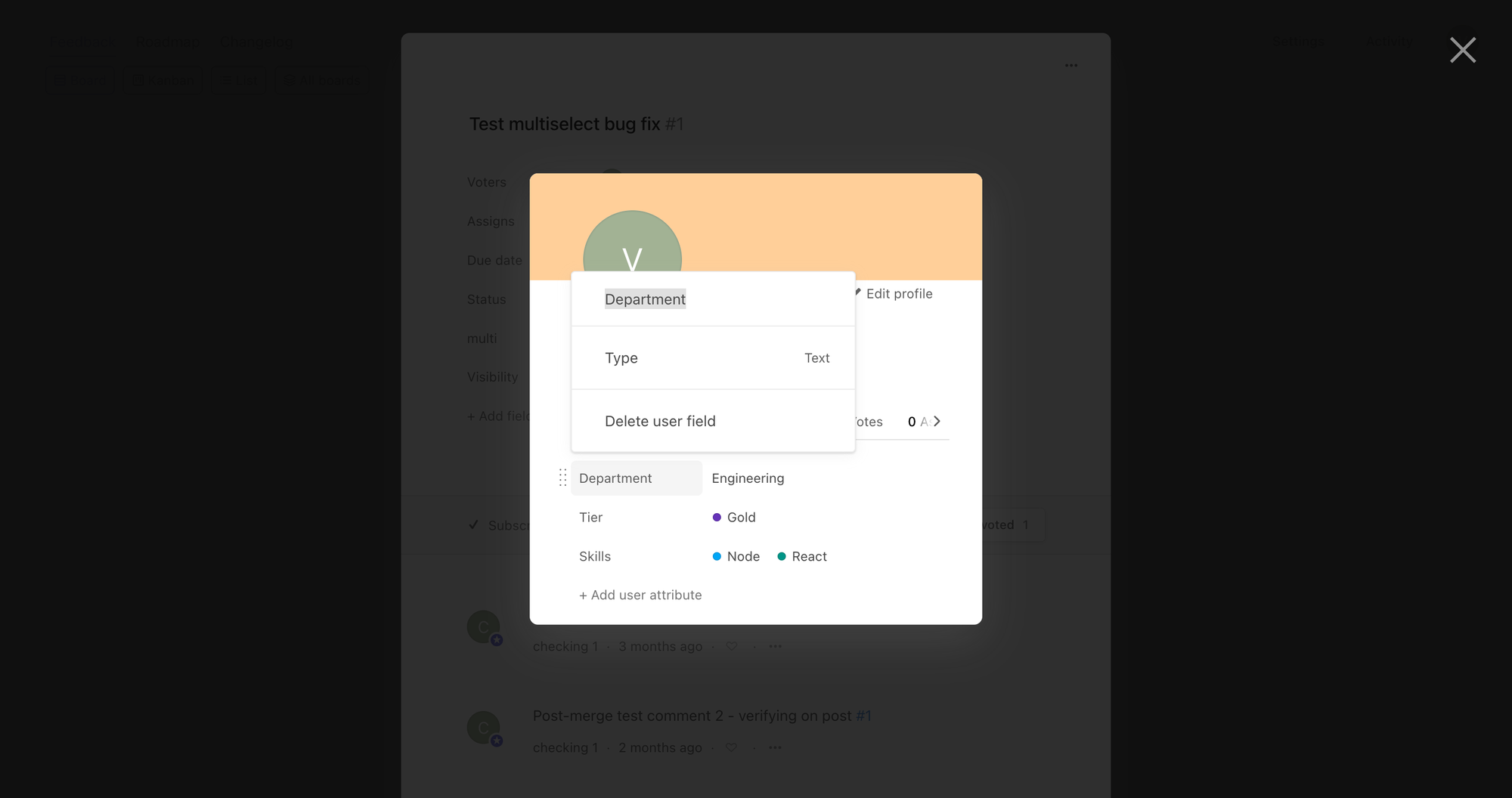
Yes. From a user's About tab, click the attribute's name to open its settings, then choose Delete user field and confirm. Deleting an attribute removes it from every user on the board, so be careful — filters that reference the deleted attribute will no longer match.
What happens to my attributes if I downgrade?
If you downgrade to a plan that doesn't include user attributes (Essential), your attribute definitions and assigned values are preserved in our database, but the User attributes section in Advanced Search becomes locked. Re-upgrading to Pro or Enterprise restores full access without data loss.
Are attributes the same as custom fields?
No. Custom fields live on the post (e.g. Severity, Affected version), while user attributes live on the user (e.g. Region, Customer tier). They serve different purposes — you'll often use both.