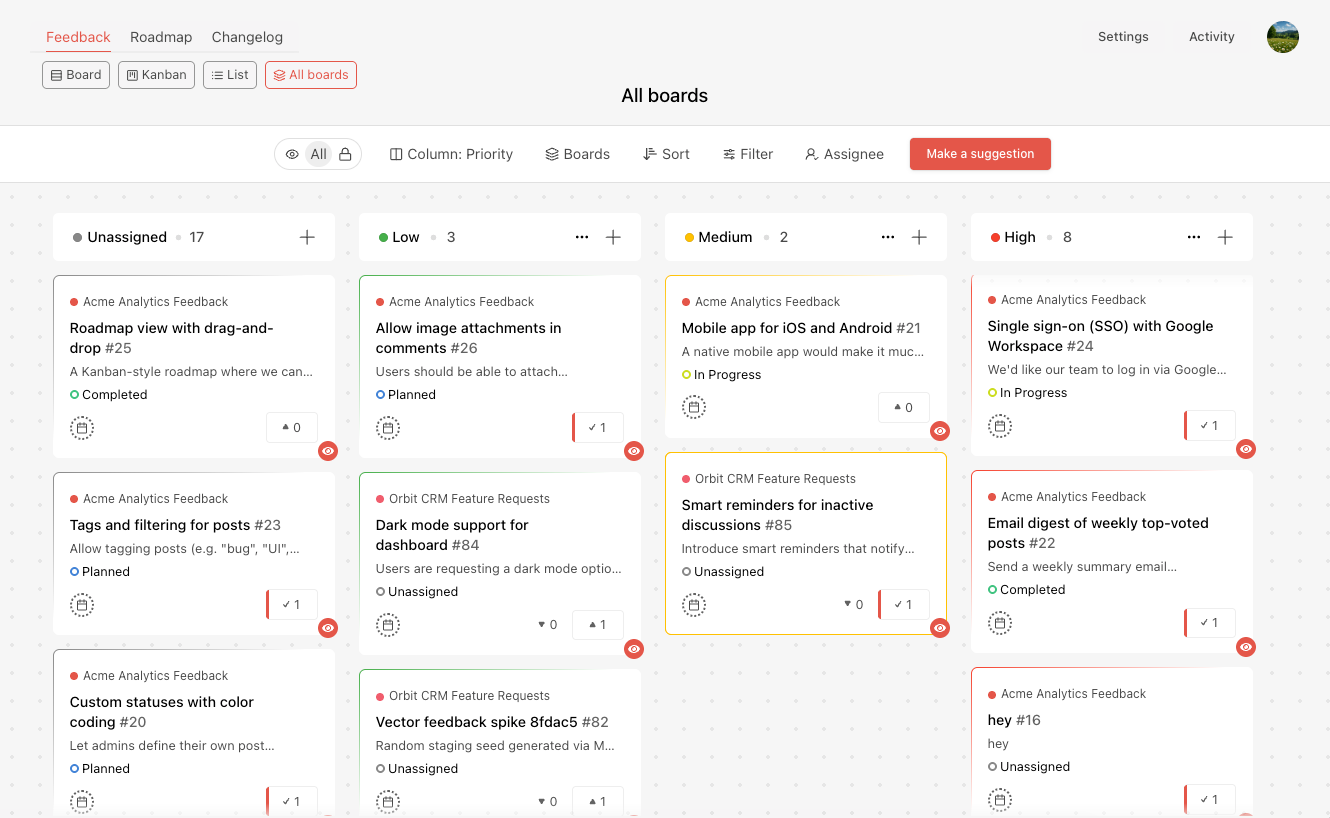
The All Boards view lets you manage posts from multiple boards in one Kanban-like view. It is designed for teams that run several boards under the same billing subscription and want one shared place to review, prioritize, and update posts across those boards.
To use the All boards view, you first need at least one All boards field.
What is an All Boards field?
An All Boards field is a shared single-select field that is available across all boards in the same billing subscription.
When a field is enabled as an All boards field, it can be used by other boards that belong to the same subscription. This makes it possible to organize posts from different boards using the same set of field options.
For example, you might create shared fields such as:
- Priority
- Product Area
- Team
- Region
- Roadmap Stage
If several boards use the same shared Priority field, the All Boards view can group posts from all of those boards by priority.
Requirements
All Boards fields have a few important requirements:
- Only single select fields can be made All Boards fields.
- The field is shared only with boards in the same billing subscription.
- The All boards feature must be available on the subscription.
- The user must have permission to manage posts on the boards included in the view.
How to enable an All Boards field
- Open any board.
- Open any post and create a single-select field.
- Open the field's settings.
- Enable the All Boards field toggle.
- Save the field.
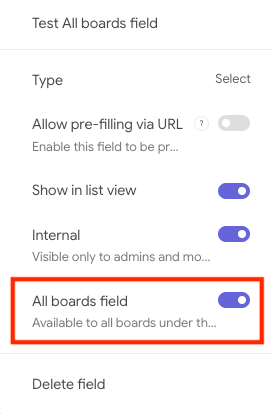
After the toggle is enabled, the field becomes available to other boards in the same subscription.
What is the All Boards view?
The All boards view consolidates posts from multiple boards into a single Kanban-like view.
Instead of showing posts from only one board, it gathers posts from boards that:
- belong to the same billing subscription,
- and are boards where you can manage posts.
Each column in the All Boards view is based on an All Boards field. For example, if you select a shared Priority field, the view shows columns such as High, Medium, and Low, and places posts from multiple boards into those columns.
Using the All Boards view
Open the All Boards tab from the board navigation. The view shows a toolbar with options to control how posts are displayed.
You can:
- Choose the shared field used as the column layout
- Include or exclude boards with the Boards filter
- Sort posts by title, created date, due date, upvotes, or downvotes
- Apply post filters
- Create a new post
- Move posts between columns
Posts in this view show which board they belong to, so you can understand where each item came from while still working in one combined view.
Creating posts from All Boards view
When you create a post from the All Boards view, you choose which board the post should be added to.
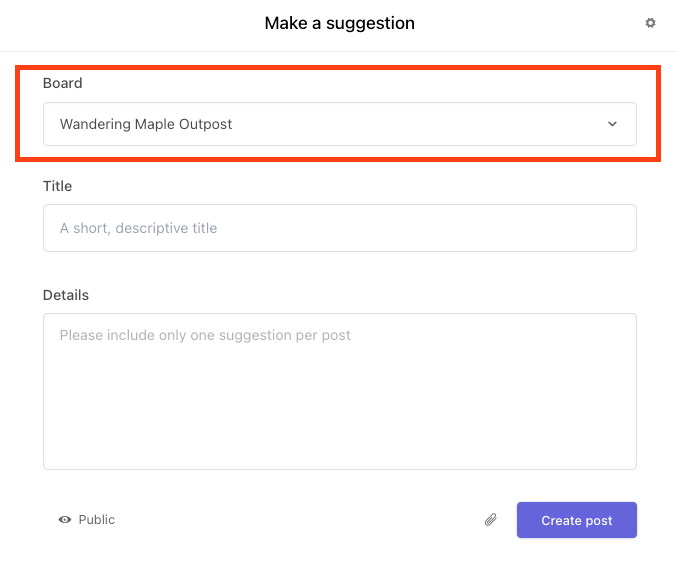
The post still belongs to one board. The All Boards view simply gives you a shared workspace for seeing and managing posts across boards.
Moving posts between columns
You can drag posts between columns in the All Boards view.
When you move a post to another column, Nolt updates the selected All Boards field value for that post. For example, moving a post from Medium Priority to High Priority updates its shared Priority field.
Unlike a single-board Kanban view, the All Boards view does not use manual post ordering within columns. Posts are arranged using the selected sort option.
Important Notes
- All Boards fields work only within one billing subscription.
- Only single-select fields can be All boards fields.
- Boards from other subscriptions are not included.
- The All boards view only includes boards you can manage.
- If no All Boards field exists, the All Boards view cannot display columns.
- Each post still belongs to its original board, even when shown in All Boards view.
- All Boards fields and All boards view are only available to Pro and Enterprise subscribers.